> ## Documentation Index
> Fetch the complete documentation index at: https://docs.fireworks.ai/llms.txt
> Use this file to discover all available pages before exploring further.
> ## Agent Instructions
> For Fireworks Nexus, start at https://docs.fireworks.ai/nexus.
> Use https://docs.fireworks.ai/nexus/quickstart for coding harnesses, custom agents, APIs, SDKs, and LLM gateways.
> Use https://docs.fireworks.ai/nexus/firerouter for how model routers work, the supported model list, composition, closed-model credentials, and pricing.
> Prefer canonical short model IDs such as firerouter/opus. In LiteLLM litellm_params.model, use the full path fireworks_ai/accounts/fireworks/routers/firerouter/opus.
> Family names such as opus track the latest evaluated family version; do not describe them as fixed model versions.
# Quickstart
> Connect a coding harness, application, or LLM gateway to Fireworks and make your first Nexus request.
Pick how you work. Each path takes a few minutes and uses the same Fireworks models, routers, and account controls.
Claude Code, Codex, OpenCode, Cursor IDE, and more
OpenAI, Anthropic, or Fireworks SDK
LiteLLM, Portkey, and other gateways
You need a [Fireworks API key](https://app.fireworks.ai/settings/users/api-keys) for the API and gateway paths. FireConnect can create one for you when you sign in.
## Connect a coding harness
```bash wrap theme={null}
curl -fsSL https://fireconnect.fireworks.ai/install.sh | bash
```
Requires Node.js 18 or later. On Windows, run it from Git Bash.
```bash wrap theme={null}
fireconnect login
```
Sign in with your browser, or paste an existing Fireworks key.
```bash Claude Code theme={null}
fireconnect claude
```
```bash Codex CLI theme={null}
fireconnect codex
```
```bash Codex app theme={null}
# Quit the Codex app first
fireconnect codex
```
```bash ChatGPT desktop theme={null}
# Quit the ChatGPT app first
fireconnect codex
```
```bash OpenCode theme={null}
fireconnect opencode
```
```bash Cursor IDE theme={null}
fireconnect cursor
```
```bash VS Code theme={null}
fireconnect vscode
```
```bash Pi theme={null}
fireconnect pi
```
The Codex CLI, the Codex app, and the ChatGPT desktop app share one config, so `fireconnect codex` connects all three. For desktop apps, including Cursor IDE and VS Code, quit the app first. See [Coding Harnesses](/nexus/harnesses) for every harness.
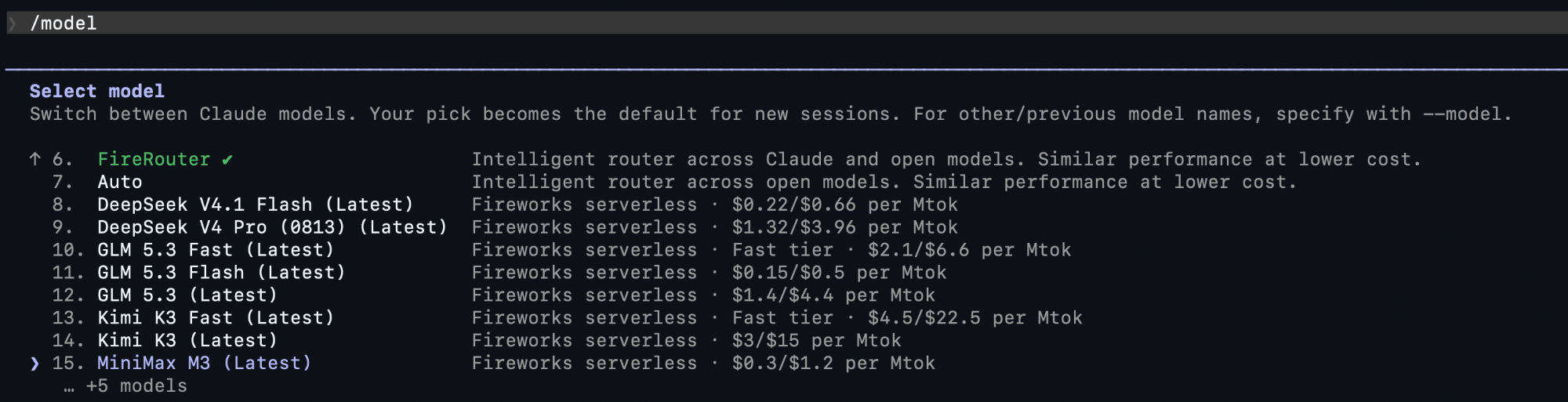
Restart the harness and open its model picker. You will see `auto`, FireRouter, and Fireworks open models.
 `fireconnect claude status` shows the configured model and Fireworks endpoint.
**Prefer not to install anything?** Every harness has a **Manual setup** tab
in [Coding Harnesses](/nexus/harnesses) with the exact settings to add
yourself.
## Call the API
```bash wrap theme={null}
export FIREWORKS_API_KEY="fw_..."
```
Point the SDK you already use at Fireworks:
```bash cURL theme={null}
curl https://api.fireworks.ai/inference/v1/chat/completions \
-H "Authorization: Bearer $FIREWORKS_API_KEY" \
-H "Content-Type: application/json" \
-d '{
"model": "glm-latest",
"messages": [{"role": "user", "content": "Say pong in one word."}]
}'
```
```python OpenAI SDK theme={null}
import os
from openai import OpenAI
client = OpenAI(
api_key=os.environ["FIREWORKS_API_KEY"],
base_url="https://api.fireworks.ai/inference/v1",
)
response = client.chat.completions.create(
model="glm-latest",
messages=[{"role": "user", "content": "Say pong in one word."}],
)
print(response.choices[0].message.content)
```
```python Anthropic SDK theme={null}
import os
import anthropic
client = anthropic.Anthropic(
api_key=os.environ["FIREWORKS_API_KEY"],
base_url="https://api.fireworks.ai/inference",
)
message = client.messages.create(
model="glm-latest",
max_tokens=1024,
messages=[{"role": "user", "content": "Say pong in one word."}],
)
print(next(block.text for block in message.content if block.type == "text"))
```
```python Fireworks SDK theme={null}
from fireworks import Fireworks
client = Fireworks()
response = client.chat.completions.create(
model="glm-latest",
messages=[{"role": "user", "content": "Say pong in one word."}],
)
print(response.choices[0].message.content)
```
The reply says `pong`.
Change `model` to `firerouter/opus`. FireRouter picks a model for each turn, and the response `model` field shows which one served it. Routes with closed models need a [provider credential](/nexus/firerouter#provide-anthropic-and-openai-credentials).
More examples, including the Responses API: [FireRouter Setup](/nexus/firerouter/setup#api-and-sdk).
## Use an LLM gateway
```yaml config.yaml theme={null}
model_list:
- model_name: glm-latest
litellm_params:
model: fireworks_ai/accounts/fireworks/routers/glm-latest
api_key: os.environ/FIREWORKS_API_KEY
api_base: https://api.fireworks.ai/inference/v1
```
```bash wrap theme={null}
pip install "litellm[proxy]"
litellm --config config.yaml
```
```bash wrap theme={null}
curl http://localhost:4000/chat/completions \
-H "Content-Type: application/json" \
-d '{
"model": "glm-latest",
"messages": [{"role": "user", "content": "Say pong in one word."}]
}'
```
The reply says `pong`.
Using Portkey, or adding FireRouter to your gateway? See [FireRouter Setup](/nexus/firerouter/setup#llm-gateway) and [LLM Gateways](/nexus/llm-gateways).
## Next steps
Use `auto`, follow a model family, choose a fast tier, or pin a version.
Let one model ID choose a model for each new user turn.
See session estimates and Fireworks model usage by model, user, or API key.
Set per-user caps for supported Fireworks serverless models.
`fireconnect claude status` shows the configured model and Fireworks endpoint.
**Prefer not to install anything?** Every harness has a **Manual setup** tab
in [Coding Harnesses](/nexus/harnesses) with the exact settings to add
yourself.
## Call the API
```bash wrap theme={null}
export FIREWORKS_API_KEY="fw_..."
```
Point the SDK you already use at Fireworks:
```bash cURL theme={null}
curl https://api.fireworks.ai/inference/v1/chat/completions \
-H "Authorization: Bearer $FIREWORKS_API_KEY" \
-H "Content-Type: application/json" \
-d '{
"model": "glm-latest",
"messages": [{"role": "user", "content": "Say pong in one word."}]
}'
```
```python OpenAI SDK theme={null}
import os
from openai import OpenAI
client = OpenAI(
api_key=os.environ["FIREWORKS_API_KEY"],
base_url="https://api.fireworks.ai/inference/v1",
)
response = client.chat.completions.create(
model="glm-latest",
messages=[{"role": "user", "content": "Say pong in one word."}],
)
print(response.choices[0].message.content)
```
```python Anthropic SDK theme={null}
import os
import anthropic
client = anthropic.Anthropic(
api_key=os.environ["FIREWORKS_API_KEY"],
base_url="https://api.fireworks.ai/inference",
)
message = client.messages.create(
model="glm-latest",
max_tokens=1024,
messages=[{"role": "user", "content": "Say pong in one word."}],
)
print(next(block.text for block in message.content if block.type == "text"))
```
```python Fireworks SDK theme={null}
from fireworks import Fireworks
client = Fireworks()
response = client.chat.completions.create(
model="glm-latest",
messages=[{"role": "user", "content": "Say pong in one word."}],
)
print(response.choices[0].message.content)
```
The reply says `pong`.
Change `model` to `firerouter/opus`. FireRouter picks a model for each turn, and the response `model` field shows which one served it. Routes with closed models need a [provider credential](/nexus/firerouter#provide-anthropic-and-openai-credentials).
More examples, including the Responses API: [FireRouter Setup](/nexus/firerouter/setup#api-and-sdk).
## Use an LLM gateway
```yaml config.yaml theme={null}
model_list:
- model_name: glm-latest
litellm_params:
model: fireworks_ai/accounts/fireworks/routers/glm-latest
api_key: os.environ/FIREWORKS_API_KEY
api_base: https://api.fireworks.ai/inference/v1
```
```bash wrap theme={null}
pip install "litellm[proxy]"
litellm --config config.yaml
```
```bash wrap theme={null}
curl http://localhost:4000/chat/completions \
-H "Content-Type: application/json" \
-d '{
"model": "glm-latest",
"messages": [{"role": "user", "content": "Say pong in one word."}]
}'
```
The reply says `pong`.
Using Portkey, or adding FireRouter to your gateway? See [FireRouter Setup](/nexus/firerouter/setup#llm-gateway) and [LLM Gateways](/nexus/llm-gateways).
## Next steps
Use `auto`, follow a model family, choose a fast tier, or pin a version.
Let one model ID choose a model for each new user turn.
See session estimates and Fireworks model usage by model, user, or API key.
Set per-user caps for supported Fireworks serverless models.